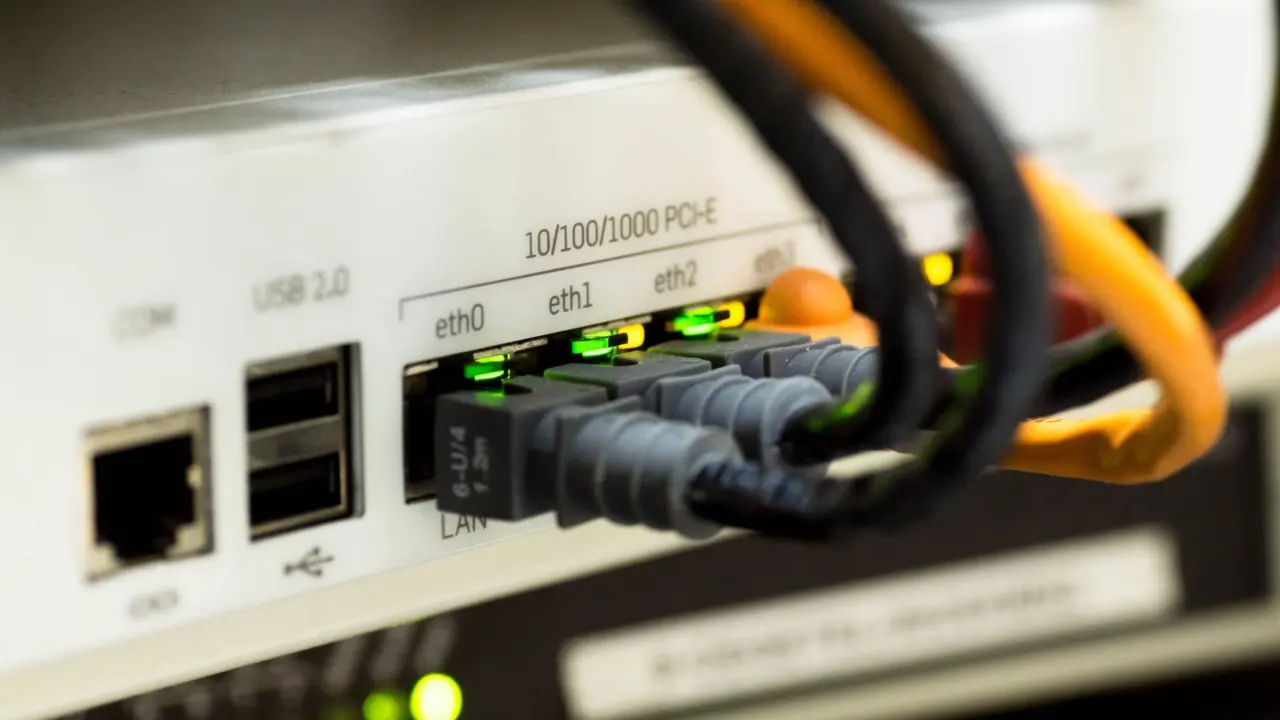
Short answer on how to find ip address of raspberry pi boards: run hostname -I on the Pi itself, or try raspberrypi.local from a machine on the same network.
The methods below are all small commands. If you want more like them, browse our linux command line tutorials. They are not ranked, because the best choice depends on whether you can type on the Pi or only reach it from another computer.
Picking a method by what you can reach
Work down the list in this order, which follows how much access you have. Stop at the first method that applies to you.
- You have a keyboard and screen on the Pi. Use a command on the board itself. It needs no guessing and no second computer.
- The Pi is headless but your laptop shares its network. Try a local hostname, then the router’s device list, then a network scan.
- The Pi is on, but nothing responds. Check its Wi-Fi settings and test reachability with ping before you scan anything.
One condition applies to every discovery method that runs from another machine. According to SimplyPrint’s guide to finding a Pi’s IP, you must be on the same Wi-Fi or network as the Raspberry Pi for these methods to work.
Commands that find the address
hostname -I on the Pi itself
This is the best fit when you can open a terminal on the board. Type hostname -I and it prints the Pi’s IP address, as SimplyPrint describes. It suits beginners because the output is just the address, with no interface list to read through. Its limit is that you need a terminal on the Pi already, so it cannot rescue a fully headless board.
ip a and ifconfig, side by side
If you can connect to the Pi directly, SimplyPrint gives ip a or ifconfig as the two commands to use. They do the same job here: list the network interfaces and the addresses on them. In either output, look for wlan0 (Wi-Fi) or eth0 (Ethernet) and read the inet entry. That entry is the IPv4 address you want.
- Which interface to read. Use wlan0 if the Pi joined your network over Wi-Fi, and eth0 if it is on an Ethernet cable.
- Which command to learn. Pick the ip command if you want one tool to remember. Use ifconfig if it is what a tutorial or an older image already has you typing. For finding an address, the translation is simply ifconfig becoming ip a.
- Compared with hostname -I. These two commands show every interface. That is useful when the Pi has both Wi-Fi and Ethernet and you need to know which address belongs to which.
raspberrypi.local from another computer
For a headless board, this is the cheapest thing to try. SimplyPrint’s generic setup advice is to try raspberrypi.local. The name makes sense because the default hostname of Raspberry Pi OS is raspberrypi. You can ping that name from your laptop and read the address it resolves to. If you changed the hostname when you flashed the card, substitute your own name in place of raspberrypi.
The router’s device list
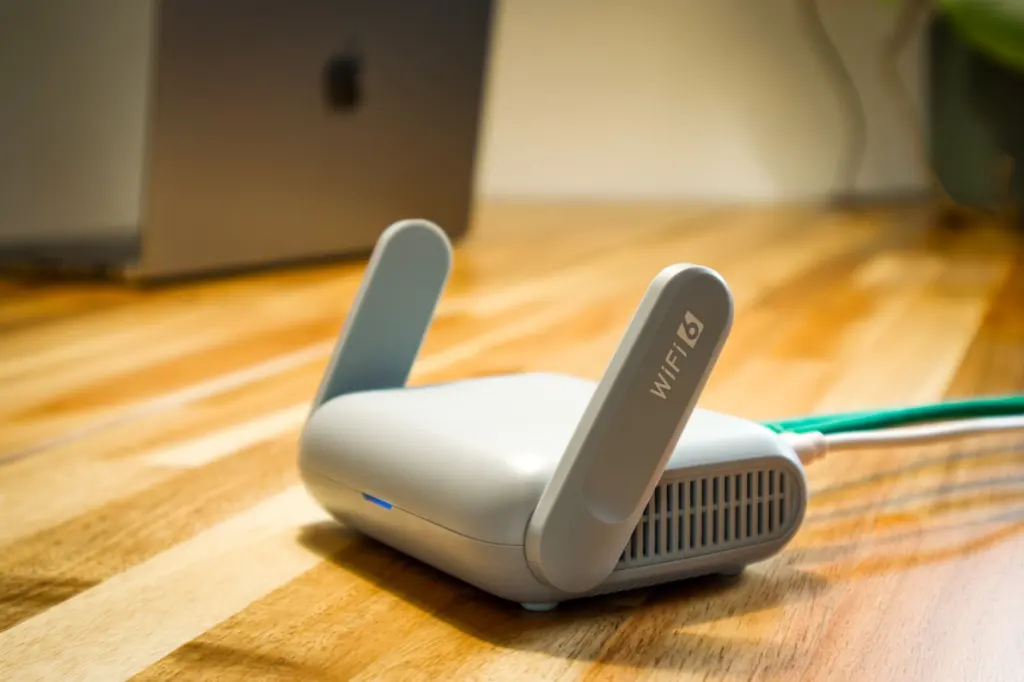
When name lookup fails, ask the router. SimplyPrint says to log in to your router’s web interface, usually 192.168.1.1 or 192.168.0.1, and look for a section called Connected Devices, DHCP Clients or Device List. SunFounder’s documentation likewise points to the addresses assigned to the Pi on the router’s administration interface. This method suits anyone who is happy in a browser and does not want to install a scanner. Its drawback is that each router names the page differently, so you may have to look around.
The desktop Wi-Fi icon
If the Pi has a screen and desktop, you do not need a terminal at all. SunFounder notes that hovering the cursor over the Wi-Fi icon displays the Pi’s IP address. It only works on a Pi running the desktop.
Scanning the network with nmap or arp-scan
Scan when the Pi is on the network but you cannot identify it in a long device list. SimplyPrint’s example is to run a scan of your local network, for instance the range 192.168.1.0/24, so the command takes the form nmap 192.168.1.0/24. Use the range that matches your own network, which you can read from your laptop’s own address.
A narrower tool is arp-scan. According to a 2013 walkthrough on finding a DHCP Pi, it discovers MAC addresses and their corresponding IP addresses on the local network. That post filters the output with arp-scan –interface=eth0 –localnet | grep b8:27:eb, which matches only the MAC prefix written in the filter. The same post notes you need to be root, or arp-scan must be SUID root, so run it with elevated rights on your laptop. Because the walkthrough is old, treat its filter as an example of the approach rather than a rule for every board.
Testing reachability and connecting
Once you have an address, confirm the Pi answers before you blame SSH or your own scripts. The ping command is the standard check. SimplyPrint’s example, ping google.com, tests whether a Pi has an active internet connection when you run it on the board. Run the same command from your laptop with the Pi’s address in place of the hostname to see whether the board answers across the local network.
Reading the result is simple. Replies mean the path to that host works. No replies mean you should look at the network before the Pi’s software. Check that both machines are on the same network, and that the Pi’s address has not changed since you copied it.
You can also list what your own machine currently knows about its neighbours. SimplyPrint says arp -a shows a list of devices connected to your network. It is a quick sanity check after a ping, because a host you have just pinged often appears in that list.
With the address confirmed, you can connect over SSH. The 2013 walkthrough shows the form ssh -l pi <ip>, where you replace the placeholder with the address you found. Swap pi for your own username if you chose a different one when you set the board up. If you later script this lookup, our python argparse tutorial shows how to accept the address as an option rather than hard-coding it.
When the Pi does not join the network
If every method comes up empty, the board may never have reached your Wi-Fi. SimplyPrint’s advice is to carefully confirm your Wi-Fi settings. For a headless board, that usually means re-checking the network name and credentials you gave it, then powering it on again and repeating the discovery steps.
A wired connection takes this whole problem away for troubleshooting. A Pi on a cable to the router should appear in the router’s device list without any wireless setup. Once it is reachable, you can fix the Wi-Fi settings from a terminal on the board itself. If you are working with the board’s storage while you fix it, see how to mount a usb drive in linux.
Methods compared at a glance
| Method | Where you run it | What it needs | Planning use |
|---|---|---|---|
| hostname -I | On the Pi | A terminal on the board | Quickest answer when you have a keyboard or screen on the Pi. |
| ip a or ifconfig | On the Pi | Direct access; read inet under wlan0 or eth0 | Choose when you need to tell Wi-Fi and Ethernet addresses apart. |
| raspberrypi.local | Another computer | Same network | First attempt for a headless board that kept its hostname. |
| Router device list | Router web page | Router login, usually 192.168.1.1 or 192.168.0.1 | Reliable fallback with no extra software. |
| Network scan, for example 192.168.1.0/24 | Another computer | Same network and a scanner installed | Use when the board is on the network but unidentified. |
| arp-scan | Another computer | Root rights | Narrows a scan to MAC and IP pairs you can filter. |
| arp -a | Another computer | A prior connection to the host | Quick list of neighbours after a ping. |
Commands and conditions in this table come from SimplyPrint’s Raspberry Pi guide and the 2013 DHCP walkthrough.
Frequently asked questions
What is the default hostname of a Raspberry Pi?
For Raspberry Pi OS it is raspberrypi, so a fresh image answers to raspberrypi.local unless you renamed it.
How long should I wait after powering on before searching?
Let the Pi run for at least 1-2 minutes before you look for it, otherwise it may not have joined the network yet.
Can I find the address from a different network?
No. The discovery methods here assume your computer and the Pi share the same Wi-Fi or network.
Do ifconfig and the ip command show the same address?
For finding an address, yes. Both are offered for a Pi you can connect to directly, and you read the inet entry in either.
What should I check if the Pi never appears?
Re-check its Wi-Fi settings, or plug it into the router with a cable and look for it in the device list.