| Phase | Key value | Planning use |
|---|---|---|
| Enable I2C | Error: /dev/i2c-1 not found | This error means I2C is still switched off. Fix it before you debug any code. |
| Wire | SDA1 and SCL1 pins | Match the sensor’s data and clock lines to these Pi pins. Miswiring shows up as OSError: [Errno 121] Remote I/O error. |
| Detect | 0x68 default address | Put this address in your script, after confirming it with i2cdetect. |
| Wake | PWR_MGMT_1 at 0x6B | Write to this register first, because the sensor starts in sleep mode. |
| Read | Accelerometer registers 0x3B to 0x40 | This is the data block to read for acceleration. |
| Convert | Divide by 16384.0 at the ±2 g range | This turns raw acceleration counts into g. Other ranges need a different divisor. |
Values come from the SunFounder MPU6050 Python walkthrough and the MPU-6050 I2C primer.
An mpu6050 raspberry pi setup comes down to enabling I2C, wiring SDA and SCL to the matching Pi pins, confirming the sensor at 0x68 with i2cdetect, then reading and scaling the registers in Python.
It is one of the more rewarding raspberry pi gpio projects because you read raw registers yourself and learn what the numbers mean. Work through the phases below in order. Each one gives you a check to pass before you move on, so a fault never hides behind a later step.
Enable I2C before touching the wiring
Turn on the I2C interface in the Raspberry Pi configuration tool first, because nothing else works without it. The usual sign that you skipped this is a Python error saying /dev/i2c-1 was not found. SunFounder’s MPU6050 guide points to the I2C configuration step as the fix for that exact message.
Doing this before you wire anything gives you a clean test later. If the bus device is missing, you know the cause is the Pi’s settings and not the sensor. Once the interface is on, the bus device exists and the next phase can begin.
Wire the MPU6050 to the Pi
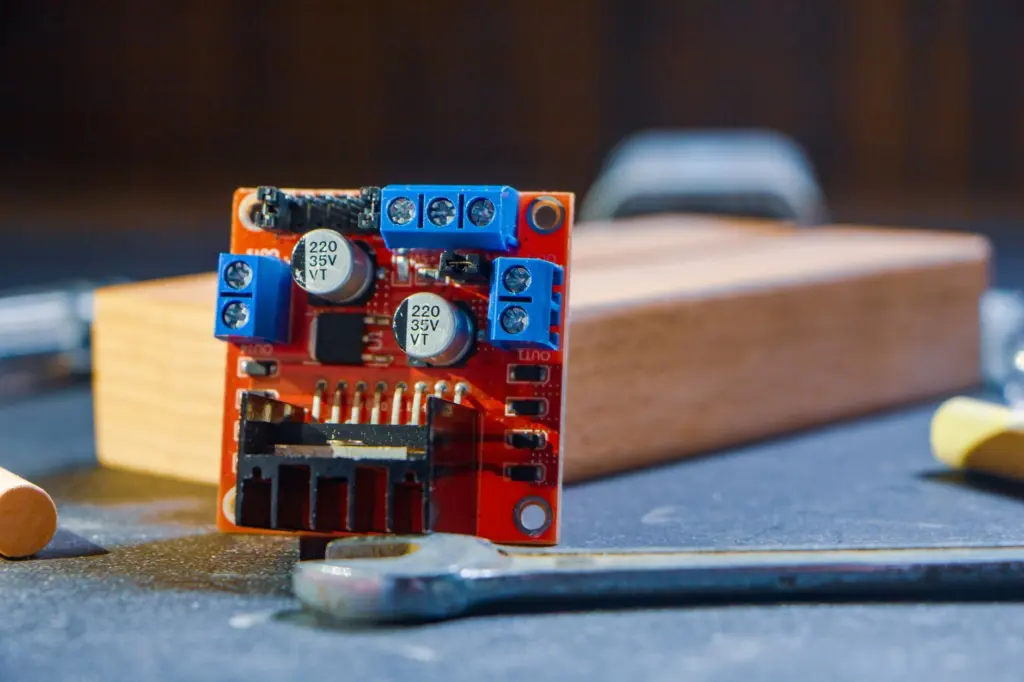
The MPU6050 talks to the Pi over the I2C bus, so the data and clock connections matter most. The same SunFounder guide says the module’s SDA and SCL lines must go to the Pi’s matching SDA1 and SCL1 pins. Connect power and ground as your breakout board’s markings and documentation specify.
Many hobby boards are sold as the GY-521, a breakout built around the MPU 6050 IMU, according to the I2C primer. Boards from different sellers can differ in their supply arrangements. Read the label and the seller’s documentation for the supply voltage before you power it from the Pi. A breadboard with short jumper wires suits this job better than long leads, because it makes it easy to swap a suspect wire.
Detect the sensor on the bus
Run i2cdetect on bus one and look for the sensor’s address. The default MPU address is 0x68, as the I2C primer states, and the SunFounder example sets address = 0x68 as the value read with i2cdetect.
If that address appears, wiring and the I2C setting are both correct, and you can move on to software. If you see a different address, use the value that i2cdetect reports in your script instead of copying the example. If nothing appears, return to the wiring phase. Do not start debugging Python until the address shows up.
Install a Python library and read the registers
You can read the sensor through the smbus module, either directly or through a community library. The SunFounder guide says the smbus2 module may need installing separately, with sudo apt install python3-smbus2. A community project on GitHub instead uses sudo apt install python3-smbus followed by pip install mpu6050-raspberrypi.
Choose the library route if you want readings quickly. Choose raw smbus if you want to understand the chip, which is the better route for this guide. The raw route follows this order:
- Open the bus. Create an smbus object for the I2C bus on the Pi.
- Wake the sensor. The chip starts asleep. According to the I2C primer, you wake it by writing to PWR_MGMT_1, located at 0x6B (107 in decimal).
- Read the accelerometer block. The acceleration data sit in registers 59 to 64, which is hex 0x3B to 0x40. Each axis is split into a high byte and a low byte.
- Combine the bytes. Join each high and low byte into one signed value. A raw count that looks huge or negative is normal at this stage.
- Read the gyroscope. Its registers follow the same pattern, so take the addresses from the datasheet’s register map.
The datasheet’s register listing can confuse library users because the addresses are not continuous. A thread on the i2cdevlib forum notes that the datasheet does not show them running without gaps from 0x00 to 0x75. Copy register numbers from a table you trust and do not assume that the next address holds the next axis.
Convert raw values to g and degrees per second
Raw readings are counts, so you divide by a scale factor tied to the range you configured. For the accelerometer, the SunFounder example divides raw output by 16384.0 to get g, for example accel_xout / 16384.0. The I2C primer says the accelerometer’s full-scale range can be ±2 g.
The divisor belongs to the range, so changing the range means changing the divisor. Look up the sensitivity for each range in the InvenSense datasheet and register map rather than guessing. The same rule applies to the gyroscope. Its range is set in GYRO_CONFIG through the FS_SEL field. The primer sets FS_SEL to the ±1000°/s setting, which is FS_SEL=2. After that, you divide raw gyro counts by the sensitivity the datasheet lists for that setting to get degrees per second.
Pick the range for your project. A narrower range suits slow tilting, and a wider one suits fast motion where a narrow range would run out of headroom. Keep the same range in your script and in your divisor, or every reading will be scaled wrongly.
Reading tilt from the axes
Once values are in g, the X and Y axes can give a tilt angle. The SunFounder example reads acceleration and angular velocity and then computes the deflection angle of the x-axis and y-axis. Tilt the board slowly by hand and watch how the readings shift between axes. This confirms that your axis labels match the way the board sits on the breadboard.
MPU6050 or ADXL345?
Choose the MPU6050 when you need rotation as well as acceleration. According to SunFounder’s documentation, it is a 6-axis motion tracking device with a 3-axis gyroscope and a 3-axis accelerometer. That suits balancing robots, orientation tracking and anything where turning speed matters.
For a Raspberry Pi ADXL345 accelerometer project, you would be working with a separate Analog Devices part with its own datasheet and its own register map. Do not reuse the MPU6050 register numbers, wake step or scale factors from this guide. Read the ADXL345 datasheet and set it up on its own terms. If you only need tilt or vibration from acceleration, that separate part is a reasonable choice. If you want rotation as well, the MPU6050 already has the gyroscope built in. An EmbeddedRelated article describes building a low-cost 3-axis motion sensor from a Raspberry Pi and the Invensense MPU6050.
After motion works, you can add position data. The raspberry pi gps module guide covers that side. If you want a simpler first sensor before tackling registers, the soil moisture sensor raspberry pi guide is a gentler start.
Troubleshooting common faults
- /dev/i2c-1 not found. I2C is not enabled. Go back to the Pi configuration step.
- OSError: [Errno 121] Remote I/O error. The SunFounder guide says this means the module is miswired or broken. Recheck SDA and SCL against SDA1 and SCL1, then try another jumper wire, and only then suspect the board.
- Nothing at the expected address. Rerun i2cdetect after reseating the wires. If the address differs from the example, use the one reported.
- Noisy readings with good wiring. The I2C primer reports that some recent batches of the GY-521 had a capacitor with an incorrect value. If a correctly wired board stays noisy, try a different board before rewriting your code.
- Values stuck at zero. Check that you wrote to PWR_MGMT_1 so the sensor left sleep mode before you read.
Frequently asked questions
Can I change the MPU6050 address?
The default is 0x68. If your breakout reports a different address in i2cdetect, put that value in your script. How a particular board selects another address is covered in the datasheet and the seller’s board documentation.
Do I need a library to read the MPU6050 in Python?
No. You can read the registers directly with smbus. A community package installed with pip is faster to start with, but raw reads teach you the register layout.
What is the MPU6050 used for?
It tracks motion. It combines a 3-axis gyroscope and a 3-axis accelerometer, so it can report both acceleration and rotation rate. A typical use is estimating tilt along the X and Y axes.
Why do I need to convert the readings?
The sensor returns raw counts. Dividing by the scale factor for your chosen range turns them into g or degrees per second.